
Course delivery
Everything that happens once a course is built.
How a student moves through a course, how work is assessed, how completion is certified, and what a course can offer people once they have finished it. Building the content in the first place is covered on the Course Authoring page.
Before delivery
Building the course has a page of its own.
Authoring outgrew being one section of this page. The eleven content block types, the page editor, the visual map of a course, the review workflow, the content libraries and version history are all covered in full on the Course Authoring page.
The builder
Blocks, tabs and required prompts
Eleven block types available to every author on every page, popups a student must acknowledge before continuing, accordions with their own scheduled-visibility date, and a visual map of the whole course.
Course authoring →Review workflow
Draft to Published, with names on it
Review status as a single field, a reviewer assigned per module, comments kept against the work, bulk publishing, and the alumni-only marking that takes a module out of the course.
Course authoring →Content libraries
Course-scoped materials, shared graphics
Materials and videos belonging to the one course they were uploaded for, a shared image library for what cannot belong to a single course, and the per-course materials lock that excludes even organization-level staff.
Course authoring →The student experience
How a learner moves through a course.
Credit mode
Follow the course as designed
Credit mode gates forward navigation on required content — a student cannot skip ahead of material they have not completed — and requires all quizzes to be completed as designed. Finishing earns credit and, where applicable, a certificate.
Browse mode
Explore freely, for review
Browse mode allows free navigation in any order, but structurally blocks quiz access and certificate issuance. It is for review or preview, and it does not earn credit.
A student chooses one mode when they open an online course for the first time. Once chosen, the mode is locked for that enrollment — which is what makes credit mean something.
Two progress bars, one calculation
A module-level bar shows every module in order, marked not started, in progress or complete. An overall completion bar shows the whole course. Both compute from the same shared function, so the two figures cannot disagree.
Weekly schedules on time
Each week's schedule appears when that week arrives. If a student cannot see a week yet, it has not been released — the gate is the point.
Discussion and messaging
Every course has a discussion board. Private messaging between students and course staff is available where a course turns it on; it is off by default.
A choice of appearance
Standard, Light and Dark, plus a setting that follows the reader's own device. The choice belongs to the person rather than the installation, and the picker sits in the navigation bar rather than inside a settings page. Why it works that way →
Learning that needs no enrollment
Micro-lessons and informational videos are open to any signed-in account, with no course and no enrollment behind them. Micro-learning & videos →
Assessment & certification
Measuring what a student has actually done.
Quizzes
- Five question types
- Automatic and manual grading
- Bulk question import via CSV or Excel
- Embedded directly into a course page as a content block
Surveys
- Six question types, including Likert scale, Matrix (a multi-statement grid) and Ranking
- Delivery targeted at an individual, a group, a directory group or a whole course
- Auto-send triggers — per student on completion for online courses, per cohort at course end for in-person — with configurable reminder offsets
- Results charted and exportable to PDF
Certification
Certificates are issued automatically on completion and are independently verifiable by code. Issuance and enrollment graduation happen as a single act, shared by both automatic paths — finishing required content, and passing a completion quiz.
The status transition fires only when a certificate is newly issued, so a staff override recorded on the roster survives a student re-opening a page or an instructor regrading an attempt.
Course project topics
Instructors can define one or more projects per course, each with its own pool of topics. A topic's capacity is either unlimited or exactly one.
Where capacity is one, the constraint is enforced by the database and selection is race-safe — the write is attempted and the database is the arbiter, rather than a check followed by an act that two students can pass simultaneously.
After completion
Alumni content, and why it works the way it does.
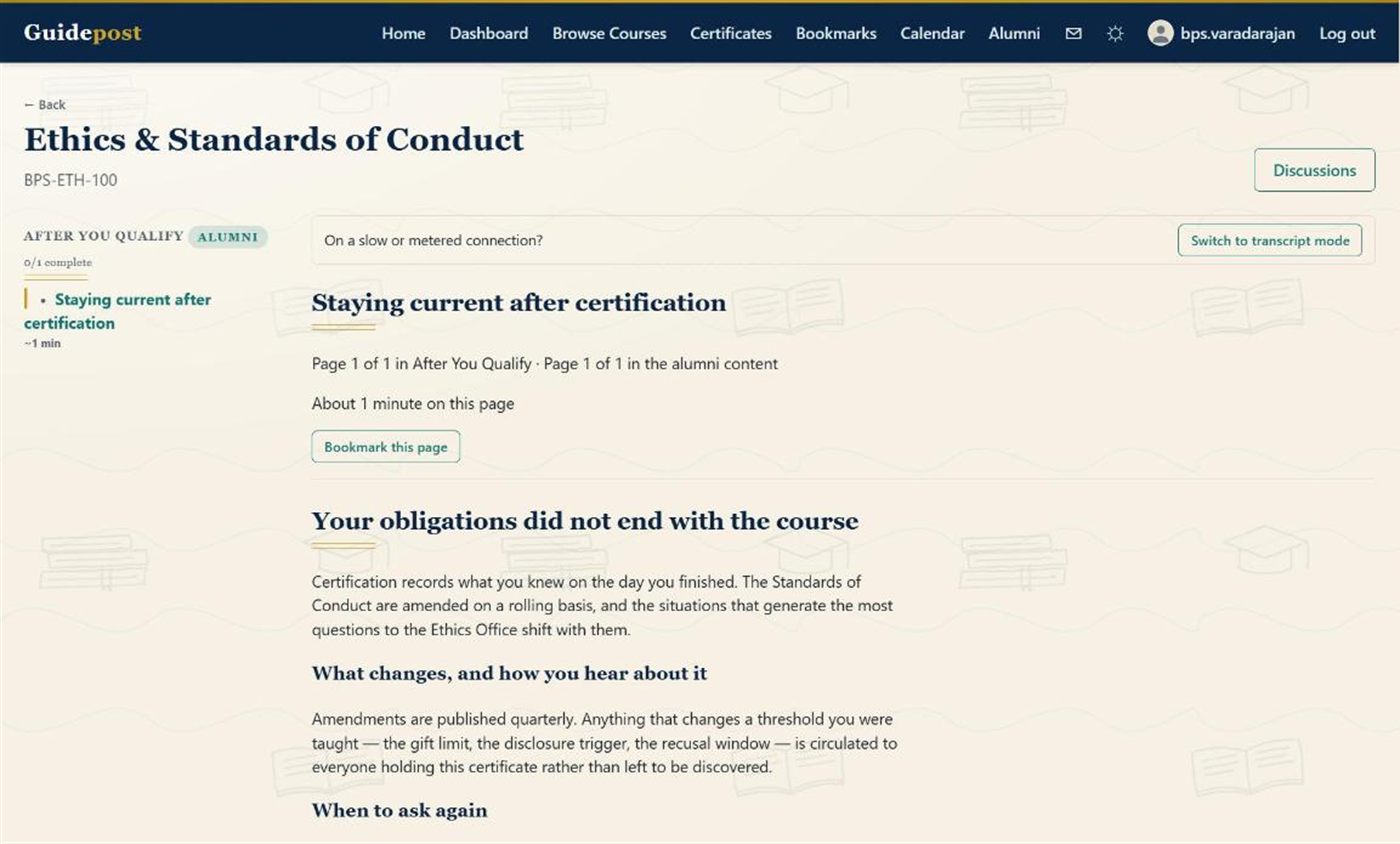
Course content published specifically for the people who have finished the course — and a set of deliberate decisions about what that must never do.
Authored exactly like anything else
An author marks a module "alumni only" on the same Build page, using the same authoring tools and the same content block types. There is nothing new to learn and no separate editor.
One site-wide Alumni page
Alumni content is reached from a single page that gathers everything a person has earned across every course they have completed, grouped by course. The navigation link appears for a student once they hold their first certificate.
Removed from its own course entirely
An alumni module is absent from the course sidebar, the reading order, in-course search and the printable copy — for every viewer, not hidden per person. That is what lets those surfaces exclude it unconditionally instead of each having to work out the right answer for the current reader.
A definition that matters
Completion means holding a certificate
Not simply having an enrollment marked alumni. These are genuinely different sets of people: a daily process moves every active enrollment to alumni status once the course end date passes, whether the student finished anything or not.
Access to alumni content is governed by actually holding the certificate — one shared definition, used by both alumni surfaces so they cannot drift apart.
Keep reading
The rest happens before the course, and around it.
Building the content — block types, the page editor, the review workflow and the libraries — is on the Course Authoring page. The hierarchy and role model, the calendar, rosters, enrollment gating, landing pages and reporting are on Administration. Content that reaches a learner without a course at all is on Micro-learning & videos.