
Course authoring
A full interactive content-building tool, not a document uploader.
Eleven content block types including branching popups, tabbed panels and embedded quizzes and surveys. A visual map of the whole course. A review workflow from Draft to Published with reviewers assigned per module. Reuse across courses, and full version history on everything you author.
The builder
A course is built page by page, from content blocks.
Every block type is available to every author, on every page, without a separate editor or a plugin to install.
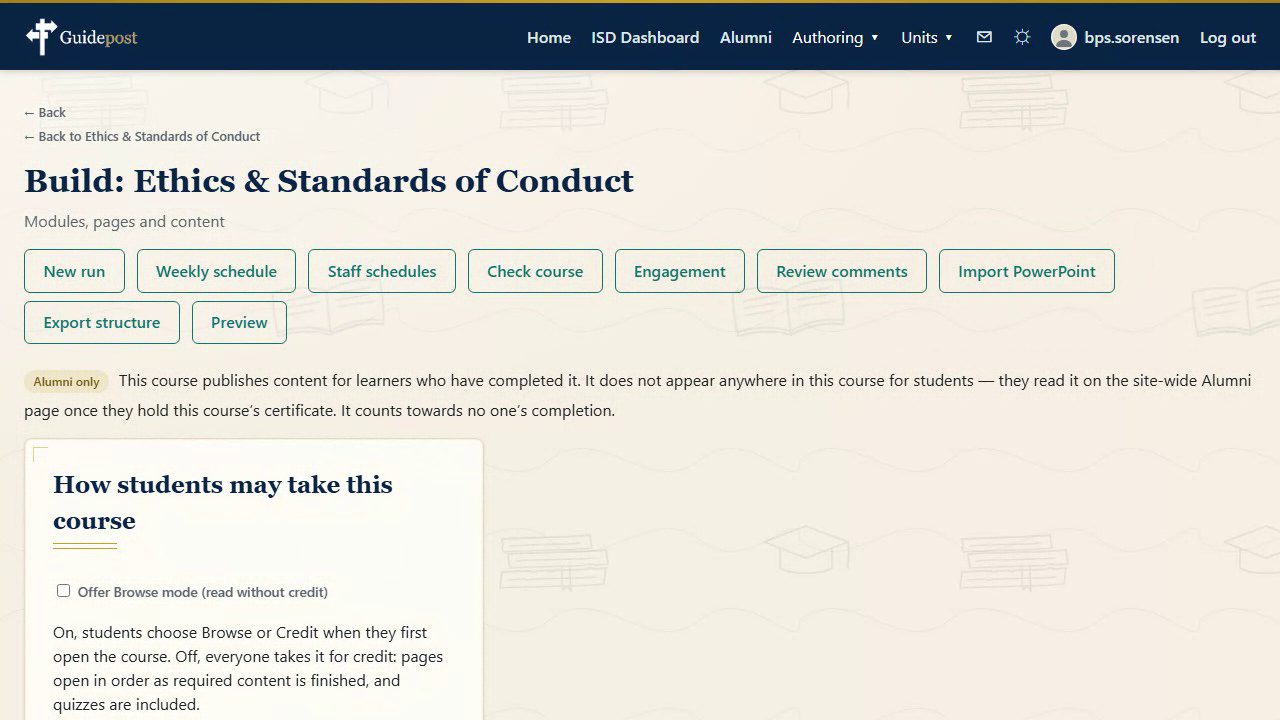
Eleven content block types
Rich text, image, video, link, popup, quiz embed, survey embed, file download, knowledge check, embedded page, and tabs. The set is deliberately finite — an author learns it once and it does not change between courses.
Tabs, for parallel material
A tabs block holds any number of titled panels and shows one at a time. It exists for material that genuinely runs in parallel rather than in sequence — a procedure that differs by role, region or equipment, where forcing a linear reading order would misrepresent the content.
Popups and required prompts
A popup block can be marked required, in which case a student must open and acknowledge it before continuing. Required prompts are clearly marked and confirmed with a checkmark once opened. Optional prompts sit alongside them for extra context and do not block anyone's progress. Either can be presented as a standalone button or as an inline trigger inside authored text.
Accordions and scheduled visibility
Accordions are a separate attachable feature with their own scheduled-visibility date, so a section can be authored now and revealed on a date you choose.
A visual map of the course
The Build page shows the whole structure of modules and pages laid out visually, so the shape of a course is something an author can see rather than infer from a list of titles. A per-module map draws the links between pages — the branches a learner can actually take — and flags any page nothing links to.
Who can change what
Editing versus restructuring
Instructors, and staff placed above a course in the hierarchy, can edit content that already exists within their scope.
Creating a new course, or restructuring one by adding, removing or reordering its modules and pages, is reserved for an ISD assigned to that specific course. This keeps course structure consistent even as broader oversight reaches further up the organization.
Version history
Nothing authored is lost
Materials, videos, surveys and scheduled reports each keep a full version history. Open the item, look for its history, and view or revert to any earlier version. A page records a version the first time its blocks are added to, edited, deleted or reordered.
The page editor
Every block on a page, labeled by what it is.
A page is a list of blocks in order. Each carries its own type, its own controls, and — where it applies — a marker showing that a student must engage with it before the page counts as done.
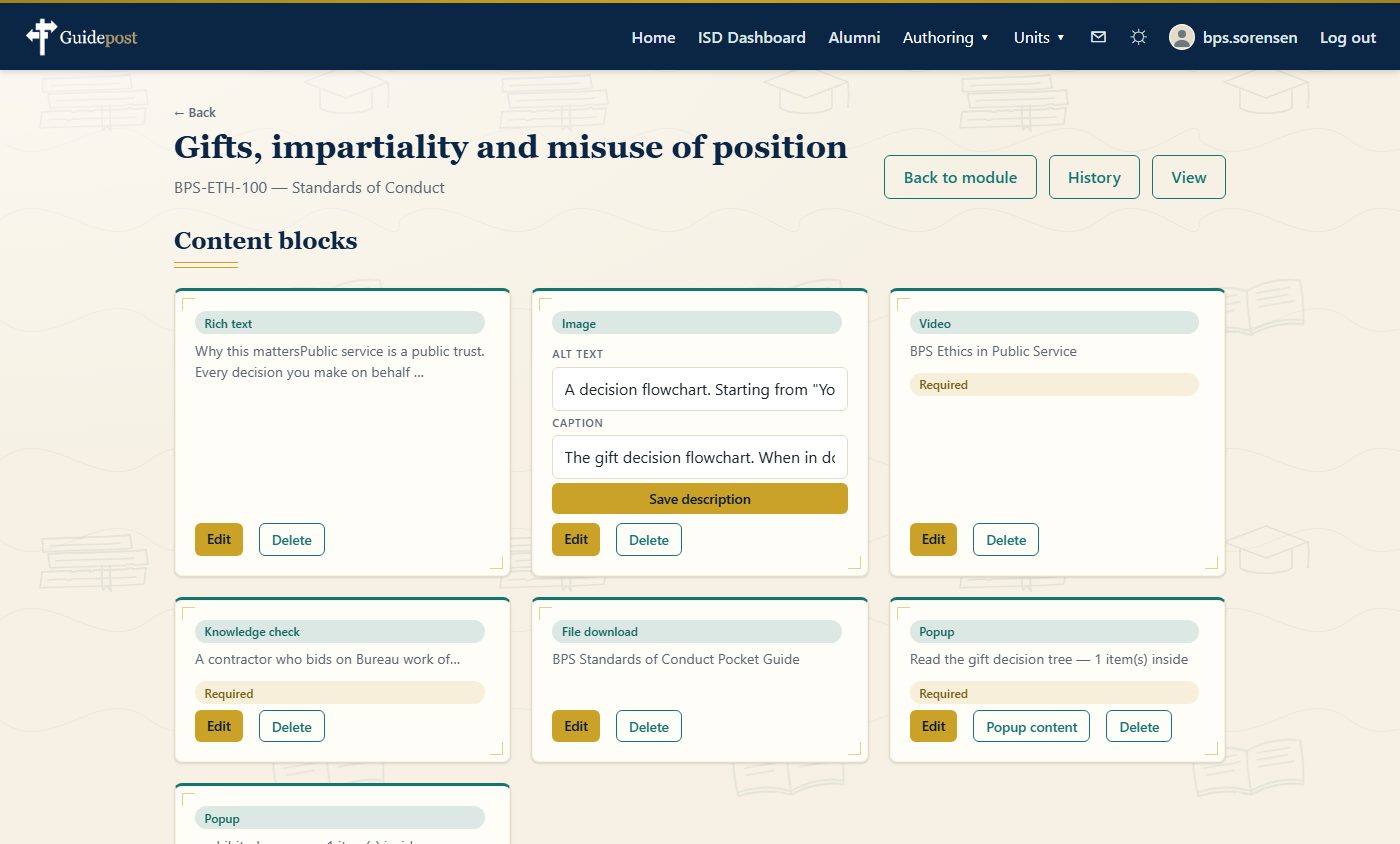
Blocks are reorderable
The order of blocks on a page is the reading order. Changing it is a drag, and the change is recorded in the page's version history like any other edit.
Alt text and captions are fields
An image block asks for its alt text and caption directly in the editor, so the information needed to make the page readable is captured where the image is added.
Required content is marked on the block
Whether a block is required is a property of the block, visible on it in the editor — not a setting on another screen that an author has to remember to check.
Popup contents are authored separately
A popup block carries its own inner content, edited behind its own control, so the branch a learner opens is authored with the same tools as the page around it.
Knowledge checks sit inline
A knowledge check is a block like any other, placed in the flow of a page rather than collected into a separate assessment at the end.
Quizzes and surveys embed
A quiz or survey built elsewhere in the platform is embedded into a page as a block, so the same instrument can be used without being rebuilt per course.
Review workflow
Content moves from Draft to Published, and someone is named at each step.
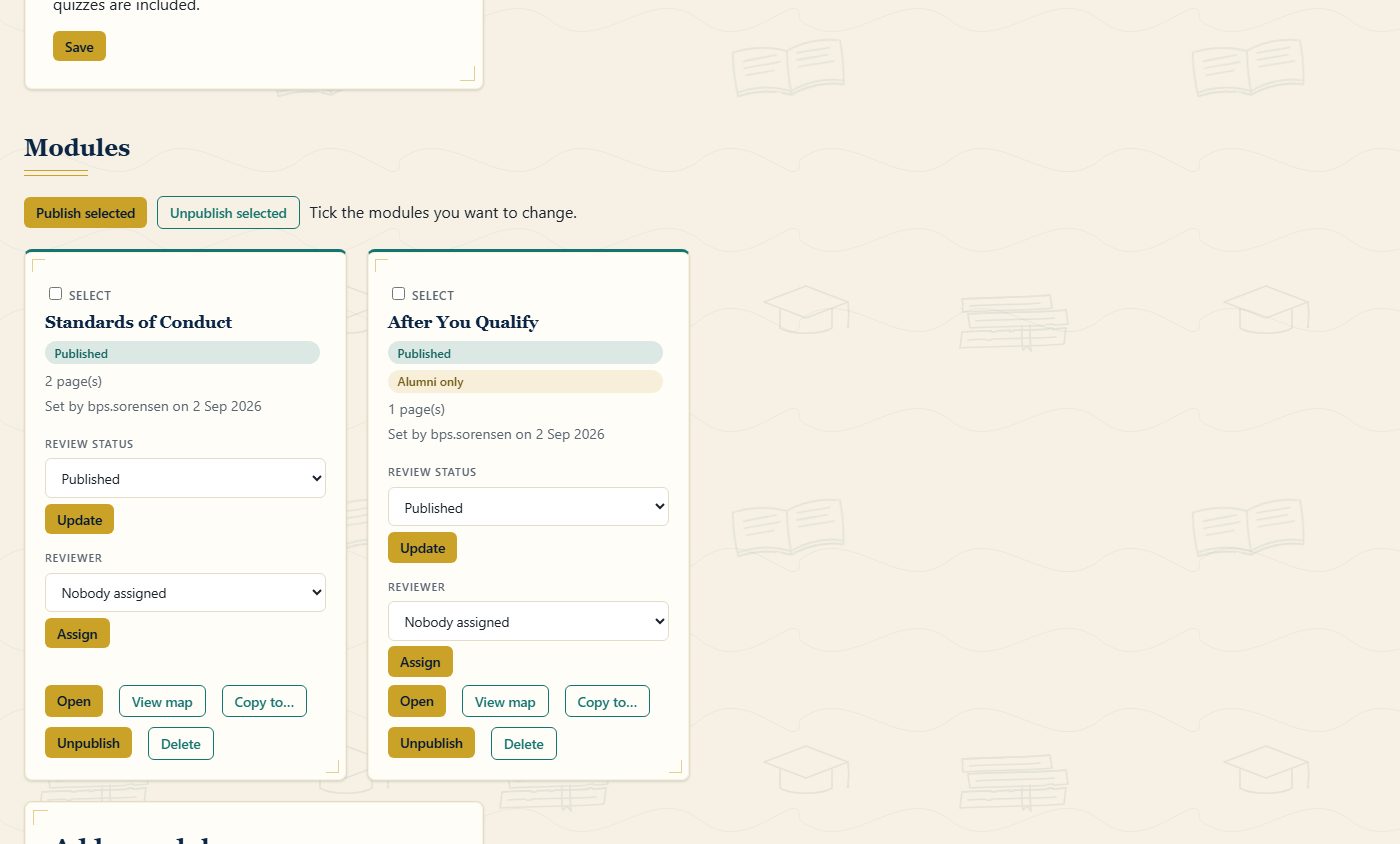
Authoring a module and publishing it to students are separate acts. What sits between them is a review state, an assigned reviewer, and a comment thread against the module.
Being written. Not visible to students.
With its assigned reviewer.
Cleared, not yet released.
Live for enrolled students.
- Publish state has exactly one home. A module's review status is the single field that decides whether students can see it. There is no second boolean to drift out of step with it, so a module cannot be approved and live at the same time.
- A reviewer is a person, not a stage. Any module can be assigned to a named reviewer, and an author can filter the module library down to just the modules waiting on them.
- Review comments stay with the module. Feedback is recorded against the module it concerns and resolved there, rather than living in a mail thread beside the work.
- Publishing can be done in bulk. Tick the modules to change and publish or unpublish the selection in one act, for the case where a course is released as a whole rather than a module at a time.
- Unpublishing is not deletion. A module can be taken back out of a course without losing its content, its history or its comments.
- Alumni-only is a property of the module. Marking a module alumni-only takes it out of the course entirely and moves it to the site-wide Alumni page for certificate holders. How alumni content behaves is covered on the Course Delivery page.
Content libraries
Materials that belong to a course, and graphics that belong to everyone.
Course-scoped materials and video
Materials and videos belong to exactly one course — the course they were uploaded for. This keeps a library from becoming an undifferentiated pile that every author has to search through to find their own work.
Library pages default to showing items relevant to your own courses. A course filter narrows further, and a "Show all" control lifts the default entirely for search and reuse across everything you have access to.
A shared graphics library
Images remain a shared, cross-course library, because they are referenced by things that structurally cannot belong to a single course: unit emblems and banners, landing-page blocks, and page backgrounds.
The distinction is deliberate rather than incidental — the scoping rule follows what an item is actually attached to.

Reuse, import and checking
Work already done should not be done again.
Copy a module into another course
Any module in the library can be copied into another course you author. The copy is independent of its source, so editing one does not silently change the other.
Search across your content
A content search runs across the modules and pages you can author, for the case where you know the material exists but not which course it ended up in.
Import an existing course
A whole course structure can be brought in rather than rebuilt, which matters most when a course already exists somewhere else in the institution.
Import from PowerPoint
An existing slide deck can be imported as a starting structure, so material that already exists as slides does not have to be retyped into blocks.
Export the structure
A course's structure can be exported, which gives an author a readable record of what a course contains outside the platform that holds it.
Check a course before publishing
A per-course check reports blocks whose quiz, survey, file, video, image or target page has been deleted, and runs a fixed set of accessibility checks — images without alt text, frames without a title, link text that says nothing out of context, long prose with no headings, and video without captions recorded.
Engagement
What the content did, in the terms it was recorded
A per-course engagement view reports which pages students bookmarked, which pages were opened more often than they were finished, and which knowledge checks are still answered wrongly.
It states what it does not measure just as clearly: time on page is not recorded, and because a knowledge check keeps only a student's latest answer, the number of attempts is not stored either.
Preview
Read it the way a student will
The builder opens the course in the ordinary reader, so an author checks the result in the same interface a learner uses rather than in an approximation of it.
What it becomes
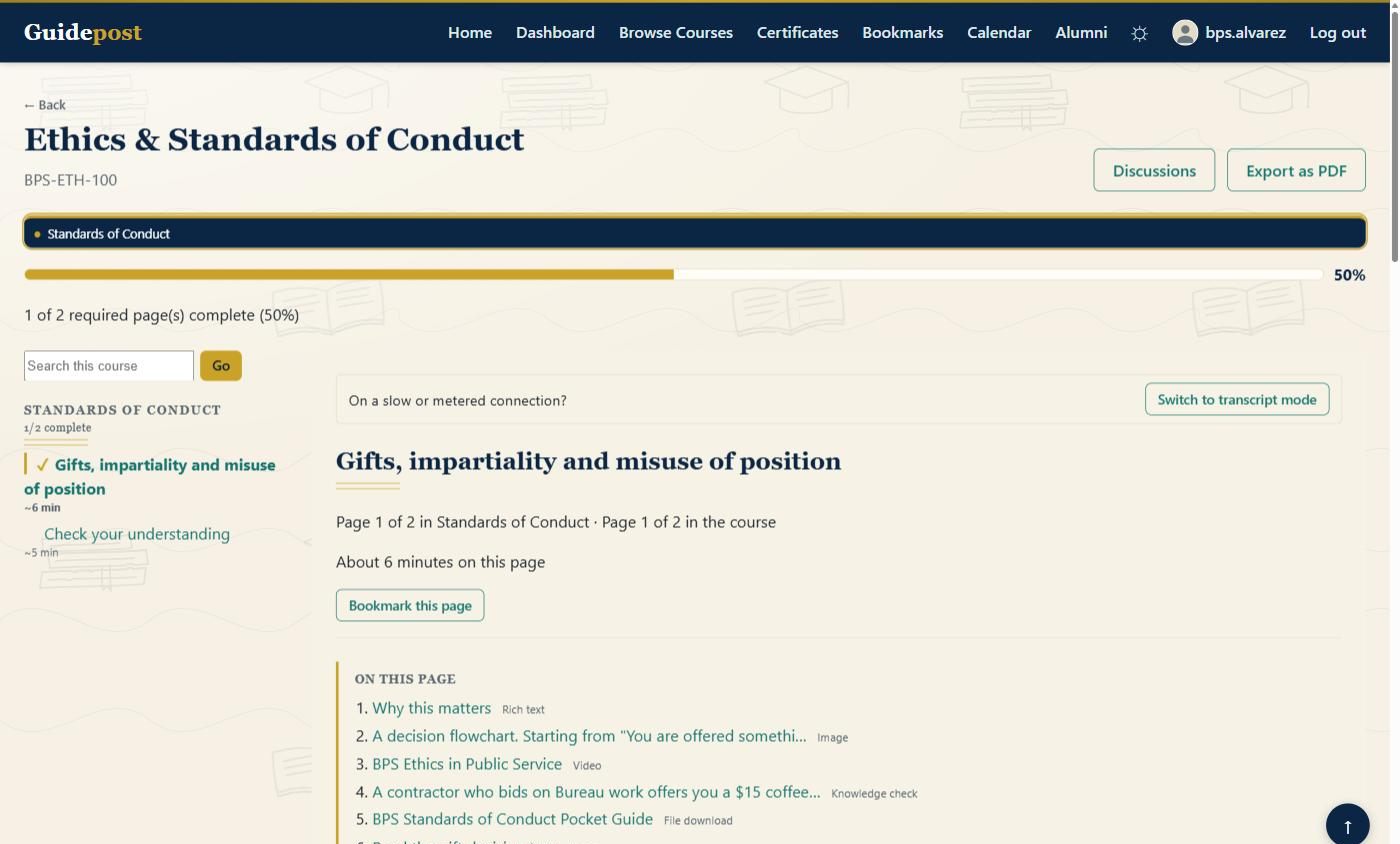
The same page, as a student reads it.
Nothing about the reading experience is authored separately. The blocks placed in the editor are the page, and the platform builds the navigation, the progress figure and the contents list around them.
Keep reading
Authoring is half of what happens inside a course.
Browse and Credit modes, progress tracking, assessment, certification and alumni content are covered on the Course Delivery page. The hierarchy, calendar, rosters and reporting are on Administration. And where a course is more than the material warrants, micro-lessons and informational videos reach a learner without one.