
Administration
Everything that happens around the course.
The organizational hierarchy and who it grants what, the calendar and schedules, roster and enrollment administration, organizational landing pages, reporting, account provisioning, and site-wide configuration.
Organizational hierarchy
Access is a consequence of placement, not a separate thing to maintain.
Guidepost is organized the way your institution already is. Every course belongs to a Group, every Group to a Schoolhouse, every Schoolhouse to your Organization — and visibility follows that same structure automatically.
| Level | What it sees and can do |
|---|---|
| Organization | The whole institution. Sees and can edit existing content across everything beneath it. |
| Schoolhouse | A major division. Sees and can edit existing content within its own groups and everything beneath them. |
| Group | A team or department. Sees and can edit existing content within its own scope. |
| Course | Where content actually lives — owned by the Course Directors, Instructors and ISDs assigned specifically to it. |
Titles label your org chart. Placement governs access.
At each level, staff titles — Chief, Deputy Chief, Staff — are labels for your own structure. All three carry identical system permissions at whatever level they are placed. What actually determines what someone can see and do is where they are placed, not which title they hold.
That separation is deliberate. It means your titles can mean whatever they mean in your institution without the platform reinterpreting them, and it means the answer to "why can this person see that" is always one fact rather than two.
Management reaches below a placement, never at it
A single rule answers "what can this person manage" for every level: strictly below their own placement. Someone at a Schoolhouse manages its Groups; someone at an Organization manages its Schoolhouses.
Nobody manages their own level, which prevents the case where a staff member can remove the assignment that grants their own access.
A course can also exist outside the hierarchy entirely, reachable only by its own assigned staff.
Course-level roles
Below the hierarchy, every course has its own assigned staff.
| Role | What they do |
|---|---|
| Course Director | Assigned to specific courses, and can hold several. Oversight for those courses only. |
| Instructor | Assigned to specific courses. Teaches, grades and edits existing content — cannot create new courses or restructure them. |
| ISD Instructional Systems Designer | Assigned to specific courses. The only role that can create a new course or restructure an existing one — adding, removing or reordering modules and pages. |
| Course Support Staff | Assigned to specific courses. Day-to-day roster and administrative support. |
Scheduling & planning
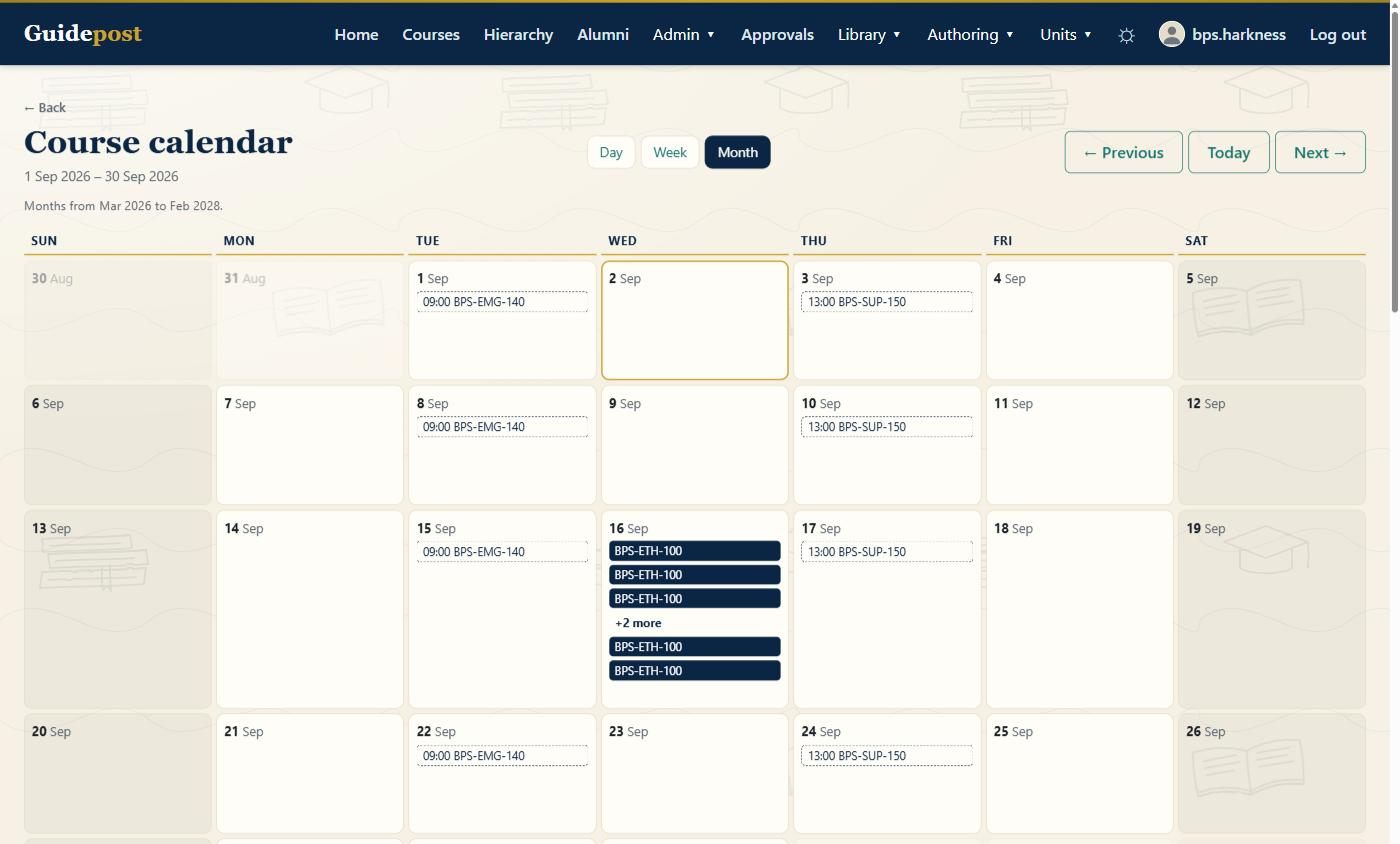
A visual calendar of every course run and every class session.
Two kinds of thing, drawn differently
A course run window is a bar spanning its dates. A session is a marker on a single day. They are rendered differently because they answer different questions — "when is this course running" and "when do I need to be in a room."
Sessions come from both places they genuinely exist: a pinned session on a specific date, and a recurring weekly slot expanded from the course's run window.
Day, week and month views
Month view pages through a fixed two-year window — six months back and seventeen forward — anchored on today rather than on the month being viewed, so the reachable range does not drift as somebody pages through it. Next year's planning is reachable without leaving the page.
The calendar as a starting point
Course creation and run or session scheduling can both be started directly from the calendar, with the date already filled in from the day you clicked. Each course shown links straight to the right destination for whoever is looking at it.
A four-month schedule, as a table
Beside the calendar sits a plainer answer to the same question: one page listing every course run across a four-month window, grouped by month, one row per run carrying its dates, its title and its course code.
All four months are always shown, empty ones included, each carrying an explicit "Nothing scheduled" line. A page showing June and September with July missing cannot be read — the reader has no way to tell whether July is empty or whether the page failed to load it.
Each title links to the course's own student site where one has been recorded against the course, and to the reader's own course page otherwise. Changing where a single row points is therefore an edit to that course, not a change to the schedule.
Weekly student schedules
Released on your timetable
Upload one PDF schedule per week of a course. Release dates are computed automatically from the course start date, with a manual override for any week where a course does not follow the usual rhythm.
Students see each week's schedule when that week arrives, not before. The release gate is the distinguishing feature — a learner opens it to find out what week three holds, so it must not appear before week three.
Staff schedules
Separate, and never student-visible
A staff-only Excel schedule per course, rendered as a live table in the browser alongside a download of the original file. Multiple uploads per course are kept, with no schema imposed on the workbook.
Fiscal-year schedules
Placed exactly where needed
An uploaded workbook rendered as a live table on its own page — not just offered as a download — with placement chosen explicitly across specific Organization, Schoolhouse and Group pages. There is no automatic cascade; the schedule appears where you put it.
Enrollment & roster administration
Rosters that carry enough detail to answer a question.
Nine live fields per person
Including alternate first and last name, organization, personnel level, and who approved the enrollment and when.
The same fields are shown on both the roster and the course detail page through shared components, so the two cannot drift apart.
Pre-course questionnaires
A survey can be set as a course's entry requirement — a student completes it before their enrollment proceeds.
Useful for prerequisite self-assessment, dietary or accessibility needs, or baseline knowledge capture. Responses are viewable as charts and exportable to PDF, and staff are notified as they arrive.
Roster document library
Attach reference roster spreadsheets to a course and keep them as a history, rendered as a readable table in the browser as well as downloadable.
This is a document library, entirely separate from the roster import that creates enrollments. Uploading one changes nobody's enrollment.
Waitlists
When a course is full, students join a waitlist rather than being turned away. Seats are filled by course staff deliberately — there is no automatic promotion that fills a seat without anyone deciding to.
Approval-gated enrollment
Courses can require instructor approval. A student is held as Pending until a member of course staff approves them, and the approval is recorded on the roster with who and when.
Reversible archiving
A course can be archived and brought back again. Tidying up the catalog never means losing the history of who took what.
Organizational presence
Every unit gets a page of its own.
Every Organization, Schoolhouse and Group has its own landing page carrying an emblem, a banner, announcements and unit-level statistics. Announcements cascade downward through the hierarchy, so something posted at the Organization reaches the units beneath it without being posted four more times.
The built-in sections are implemented as content blocks in the same system used to add custom content — not as a separate toggle mechanism. That means any section can be reordered, removed or reintroduced alongside authored content, rather than sitting in a fixed order with a checkbox next to it.
Users choose a default landing destination. If they have not set one, it is computed from their actual placement rather than left arbitrary — the broadest unit they are assigned to, or for course-level staff, the Group their assigned courses belong to.
Announcements
Posted once, seen downward
An announcement posted at the Organization reaches the Schoolhouses and Groups beneath it without being posted four more times, and a Group can still post something that stays local to it.
Statistics
Unit-level figures in place
Each unit page carries statistics for that unit, so the answer to "how is this schoolhouse doing" is on the schoolhouse's own page rather than in a report someone has to go and build.
Reporting & surveys
Results that arrive without being asked for.
Scheduled reports
Recurring reports, filterable by course or group, delivered by email on a flexible day, week or month interval. Reports keep a version history like other authored items — view or revert to any earlier definition.
Survey results
Survey responses are charted and exportable to PDF, across six question types including Likert scale, Matrix and Ranking. Pre-course questionnaire responses come back the same way, with staff notified as they arrive.
One targeting system
Delivery is aimed through a unified recipient system — an individual, a group, a directory group or a whole course — reused by both surveys and scheduled reports rather than reimplemented separately for each.
Auto-send triggers
Surveys can fire automatically: per student on completion for online courses, or per cohort at course end for in-person ones, with configurable reminder offsets.
Progress and completion
Module-level and overall completion figures are computed from one shared function, so a report and a student's own progress bar cannot show different numbers.
Standing data-quality reports
Some checks run as standing reports rather than one-off queries — for example surfacing any account still missing its unique numeric identifier.
Site-wide administration
The controls that apply to the whole platform.
Hierarchy management console
Create and rename Organizations, Schoolhouses and Groups, and assign staff with a title. Each placement is exactly one level, enforced at the database.
The COTR duty
A duty that can be added to a Schoolhouse or Organization-level placement, rather than a separate role. A COTR can upload and update fiscal-year training schedules and place the resulting link on exactly the pages that need it, independent of the usual visibility rules.
AIN on every account
A unique numeric identifier assigned per person, required for every account and shown alongside name and email wherever staff details already appear.
Administrator-provisioned accounts
Course-level and organizational accounts are provisioned by an administrator. There is no public self-registration, and a whole organization can be created from one spreadsheet — bulk user import is below.
Site-wide settings
A database-backed settings singleton, including a controlled kill switch for the AI assistant enforced at the single point both the interface and the underlying endpoints already consult.
Consolidated navigation
Related destinations are grouped into Library, Authoring and Admin menus, considerably shortening the navigation bar for administrative roles — with a tested ceiling on top-level items per role so the bar cannot grow unnoticed.
Account provisioning
Getting a thousand people into the platform.
Accounts are created by administrators rather than by the people who will use them, which is the right answer for an institution and the wrong thing to do a thousand times by hand.
- A spreadsheet, from wherever you already keep people. CSV or Excel, with username, email and role required and first name, last name and AIN optional. Column headings resolve through a table of aliases, because a real export from an HR system calls the column whatever that system calls it.
- The whole file is validated before anything is created. An unrecognized role, a blank username, the same username twice, a malformed identifier — any of these stops the import with the row named, and nothing at all is written. A partial import that announces itself as a complete one is the failure this was deliberately shaped to make impossible.
- Re-importing the same file is safe. A username that already exists is skipped with a reason rather than overwritten. Where a row's role differs from the account's, the difference is reported for a person to look at — a role column is as likely to be a stale export as an intended promotion, and a privilege change should not arrive from a spreadsheet with nobody deciding on it.
- Two ways in, one engine. A command your administrators run on the server, and an in-app upload behind the full-access administrative role. Both read and apply a file through exactly the same code, so the two cannot drift into disagreeing about what a valid file is.
- Five thousand rows at a time. Beyond that it asks you to split the file rather than quietly reading part of it.
How people get in
Single-use links, and no email sent
An import sends nothing to anybody. It produces one single-use, expiring sign-in link per new account, for your administrators to distribute through whatever channel they already use for this.
The in-app path mints those links at the moment you download them, writes none of them to disk, and skips any account that has already signed in. The command writes a links file you name explicitly, created with restrictive permissions and never written to a log.
Keep reading
The other half happens inside the course.
Content block types, the page editor and the review workflow are on the Course Authoring page. Browse and Credit modes, assessment, certification and alumni content are on Course Delivery.